How to Report Platform Errors
How to report platform errors
Generate HAR files for troubleshooting
Whenever you open a support ticket, you should include more information about the error reproduced in your browser. One common way to do that is by recording a HAR file.
A HAR file contains a log of the network requests that happened while the issue occurred. Browser console logs are also useful in addition to the HAR file.
How to generate HAR files in Chrome
- Open Chrome and go to the page where the issue happens.
- Click ⋮ and choose More tools > Developer tools.
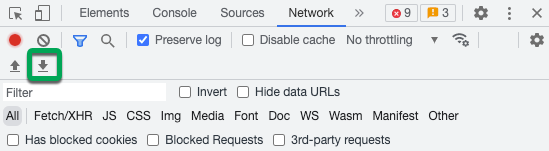
- In the panel that opens, go to the Network tab. Keep that panel open while reproducing the problem.
- Look for the round recording button in the upper-left corner of the tab and make sure it is red. If it is gray, click it once to start recording.
- Check the Preserve log box if it is not already enabled.
- Click the gray clear button to remove any existing entries from the Network tab.
- Reproduce the issue while the requests are being recorded.
- Click the download button, Export HAR, to save the file on your computer. Save it as HAR with content.
-
- Attach the HAR file to your Support ticket for further investigation.
How to generate a HAR file in Firefox
- Open Firefox and go to the page where the issue happens.
- Open the Network Monitor.
- Reproduce the issue while the network requests are being recorded.
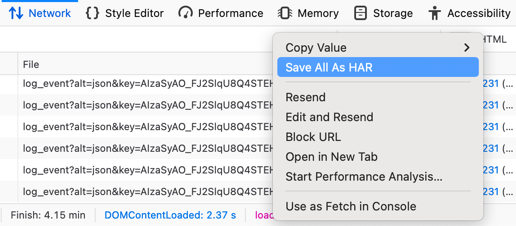
- Right-click anywhere under the File column and click Save all as HAR.
-
- Save the HAR file somewhere convenient.
- Attach the HAR file to your Support ticket for further investigation.
How to generate a HAR file in Safari
- Open Safari and access the Develop menu. If you do not see the Develop menu, follow the instructions in Apple’s guide: Use the developer tools in the Develop menu in Safari on Mac.
- Select Show Web Inspector.
- Click the Network tab and keep it open while reproducing the problem. Then export the captured traffic as a HAR file.
-

- Attach the HAR file to your Support ticket for further investigation.
How to generate a HAR file in Edge
- Open Edge and access the Network tool.
- Reproduce the issue while the network requests are being recorded, then export the captured traffic as a HAR file.
- Attach the HAR file to your Support ticket for further investigation.