How to Collect an Excel File into Dadosfera
Excel is one of the most widely used tools in the professional world. Because it makes it easy to organize data in tables, your organization may already have valuable information in Excel files that you want to analyze in Dadosfera.
At the moment, it is not possible to upload an Excel file directly to Dadosfera. However, if you have a static Excel file and want to analyze it in Dadosfera, there are a few ways to collect that data:
📘
Before collecting the file into Dadosfera, make sure the data is in tabular format and import one worksheet at a time.
1) Export the file as CSV and import it manually
Recommended when your organization does not want to store files in another cloud tool. This is the fastest option.
- Export the Excel file as CSV:
File->Save As->CSV. - Import the CSV manually into Dadosfera.
2) Upload the file to Google Drive and collect it with the Google Sheets connector
Recommended when your organization already uses Google accounts.
- First, upload the Excel file to Google Drive:
- Open Google Drive and sign in with your Google account.
- Click the
Newbutton in the upper-left corner. - Select
File upload. - Browse to the location on your computer where the Excel file is stored.
- Select the file and click
Open. - After the upload finishes, the Excel file will appear in your Google Drive folder.
- Note: a simpler alternative is to drag and drop the Excel file directly into the Google Drive folder, as shown in the GIF below.
- To convert the Excel file into Google Sheets, follow these steps:
- Right-click the Excel file you just uploaded to Google Drive.
- Select
Open with. - Click
Google Sheets. This opens the Excel file inside Google Sheets. - To save it as a native Google Sheets document, click
Filein the upper-left corner. - Select
Save as Google Sheets. - Give the new document a name if needed and click
Save.
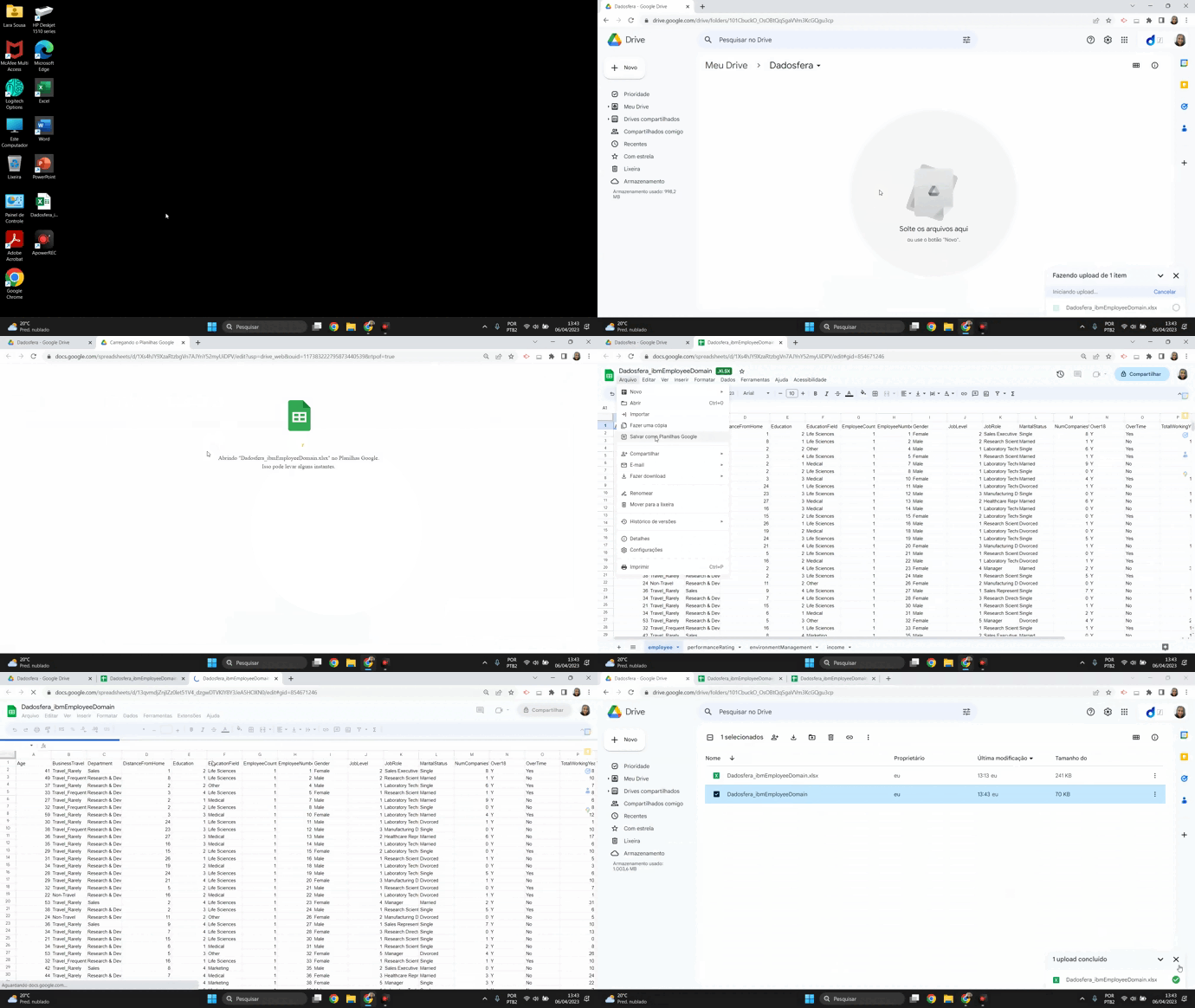
- Create a pipeline using Google Sheets as the source.
3) Upload the file to AWS storage and collect it with the S3 connector
Recommended when your organization uses AWS and the data volume is relevant.
- Export the Excel file as CSV:
File->Save As->CSV. - Choose or create an S3 bucket.
- Click
Upload. - Select
Add filesand thenUpload. - Create a pipeline using Amazon S3 as the source.
This workflow is also recommended for collecting static data from tools or file formats that Dadosfera does not support through a native connector.
If your data is not static, you can also build an automated collection script for S3, a database, or even Google Sheets, and then create a pipeline for recurring collection in Dadosfera.