Custom Group Creation | Access Management
In addition to the six standard platform groups — Super Admin, Data Admin, Data Assets Manager, Viewer, User Admin, and Contact Support — Dadosfera also lets you create custom groups with permissions tailored to your organization.
How to Create a New Group
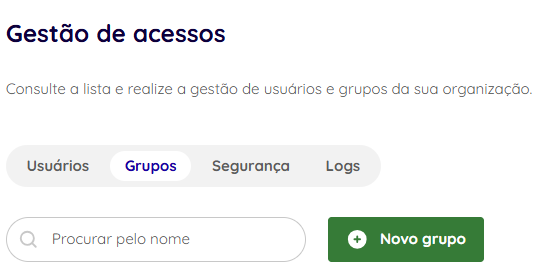
- Open the "Groups" menu and click "New group":
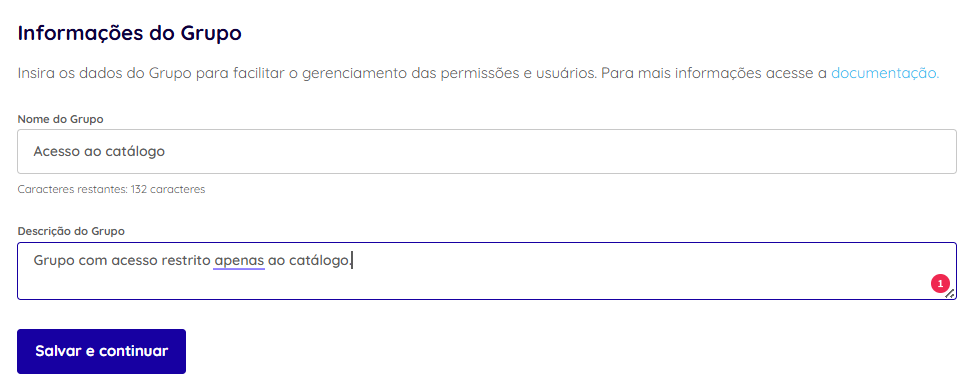
- Fill in the group details such as name and description:
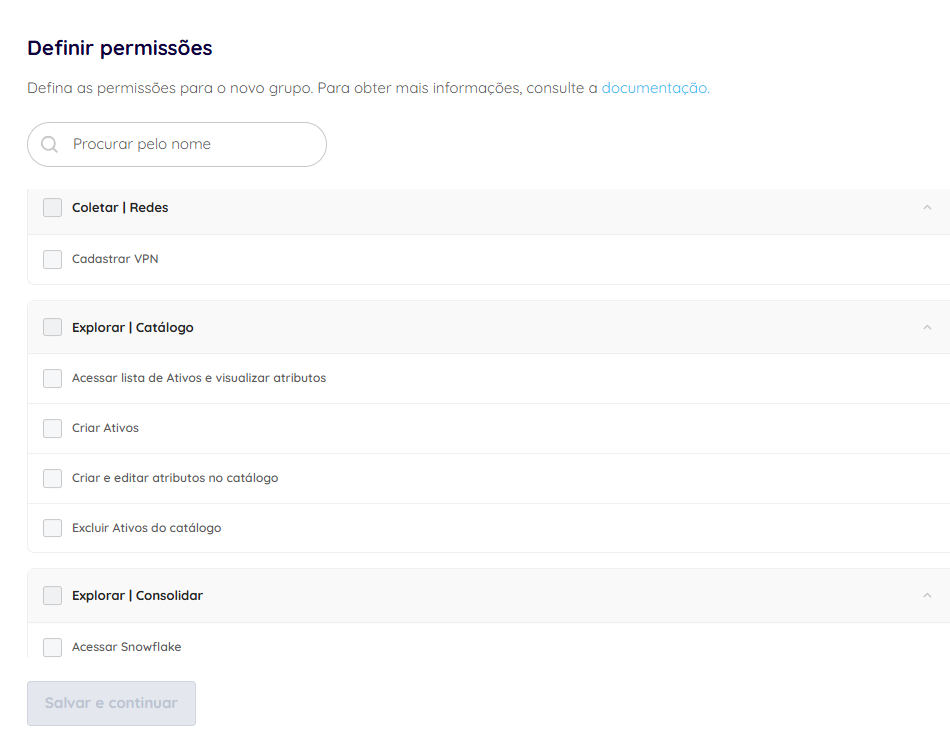
- Configure the group permissions according to the access level you need:
- Select the users you want to add to the new group.
Example: Sharing Only One Catalog Asset
If you want to grant access to a single asset, such as a specific dashboard, use the flow below:
- When configuring permissions, select only Access asset list and view attributes in the Explore | Catalog section.
- After creating the group, open the asset you want to share in the catalog.
- Use the sharing option to associate the asset with the new group:
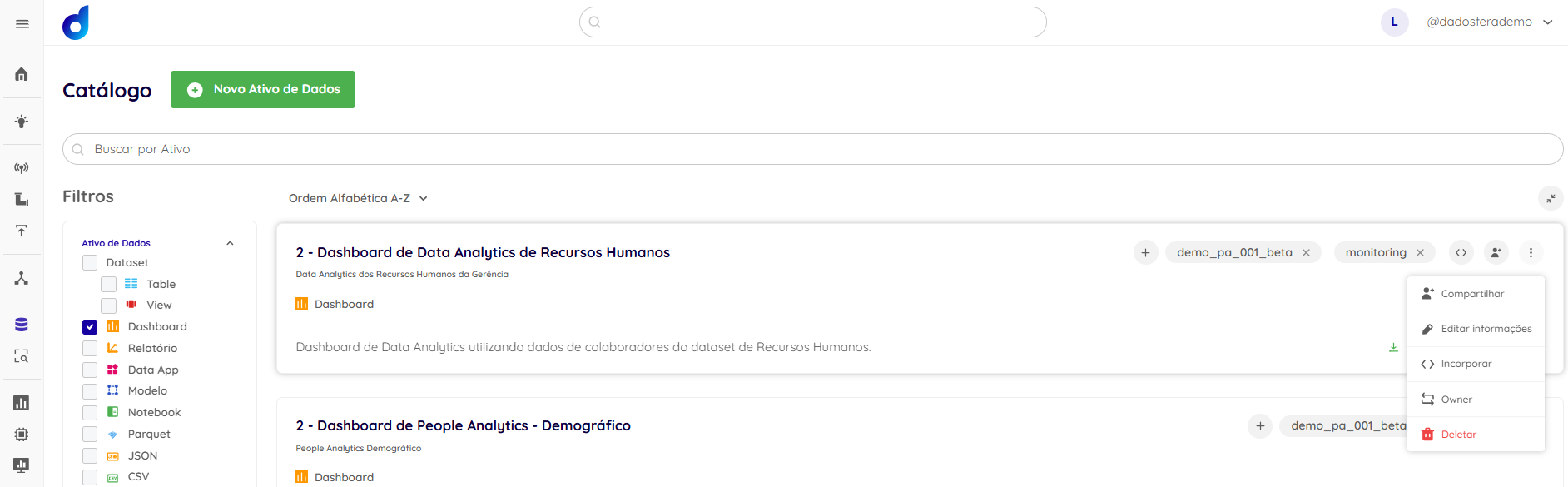
This approach limits the group to the catalog and only to the assets explicitly shared with it. It is useful when you need granular and secure access for multiple teams or external stakeholders.