Automatically Cataloged Data Assets
Data assets are cataloged automatically for access, documentation, and governance. They can be generated in three ways:
- Pipeline creation, generating one dataset per imported object.
- View creation in Snowflake, generating a new
Viewdataset in the catalog. - Dashboard creation in Metabase, which is embedded in the catalog interface as a new asset.
Datasets
Search for and select a dataset to view its details.
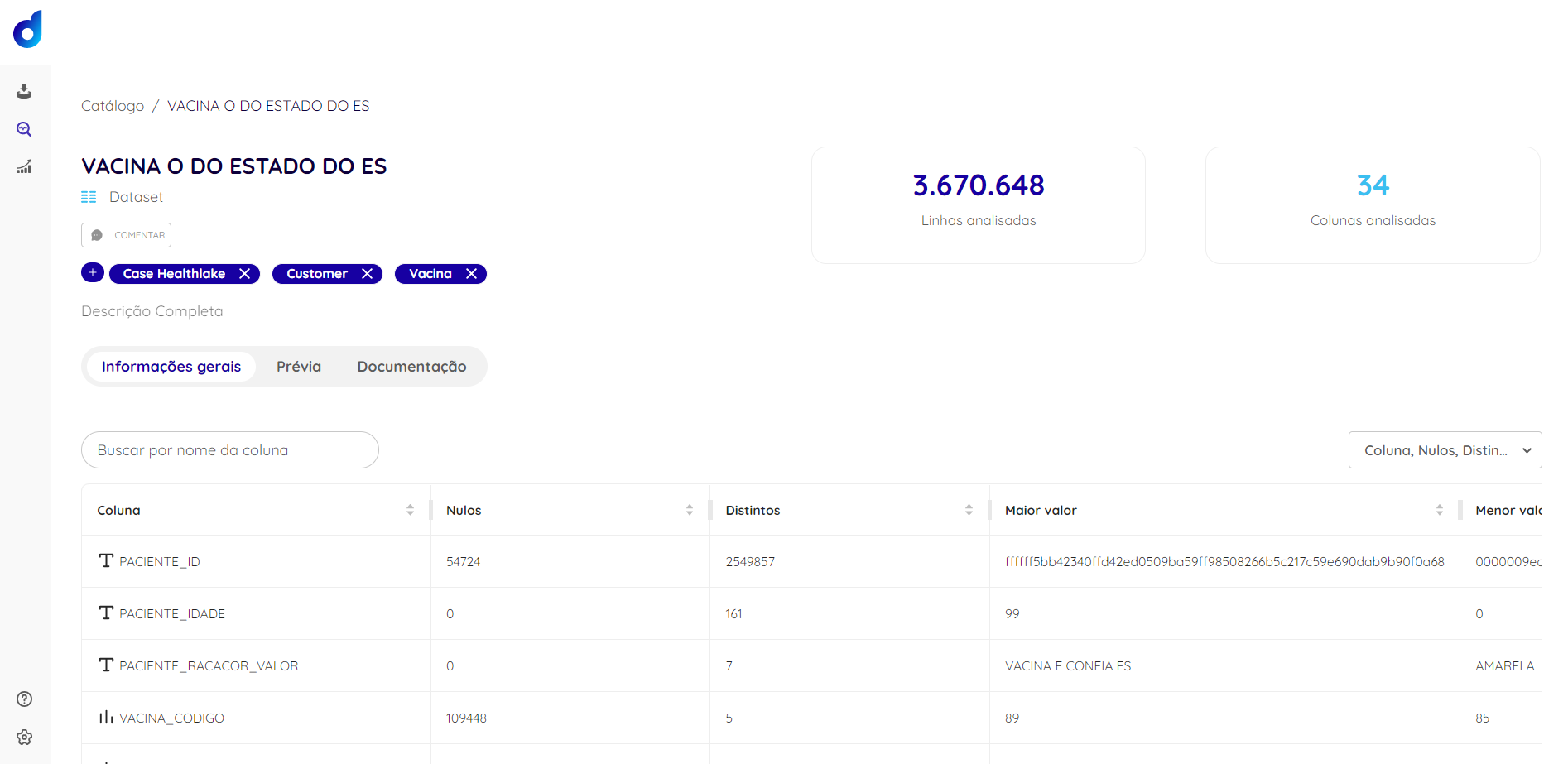
In the header, you can add comments, associate a tag, and write a brief description. The upper-right corner shows the total rows and columns analyzed.
Information
Explore your data structure through automatically generated metadata:
- Column name, with its type shown in the icon on the left.
- Number of null values
- Number of distinct values
- Maximum value
- Minimum value
- Mean
- Median
- Standard deviation
📘 Notes:
Special characters: even after changing the "Encoding type", default parameters may prevent special characters from appearing in the catalog.
If an integer column contains null fields, it is identified as a string.
Initially, 5 items are shown per page. View additional columns, if any, by increasing the number of items per page or moving to the next pages.
Preview
Explore the contents through a preview of your dataset.
📘
Initially, 5 items are shown per page. View additional columns, if any, by increasing the number of items per page or moving to the next pages.
Documentation
Document important details about your dataset for future reference and access by other users.
Dashboards
Dashboards (panels containing information, metrics, and indicators) are created in Metabase, the Visualization tool natively integrated with Dadosfera. They are cataloged automatically so users can view them directly from the Catalog menu.
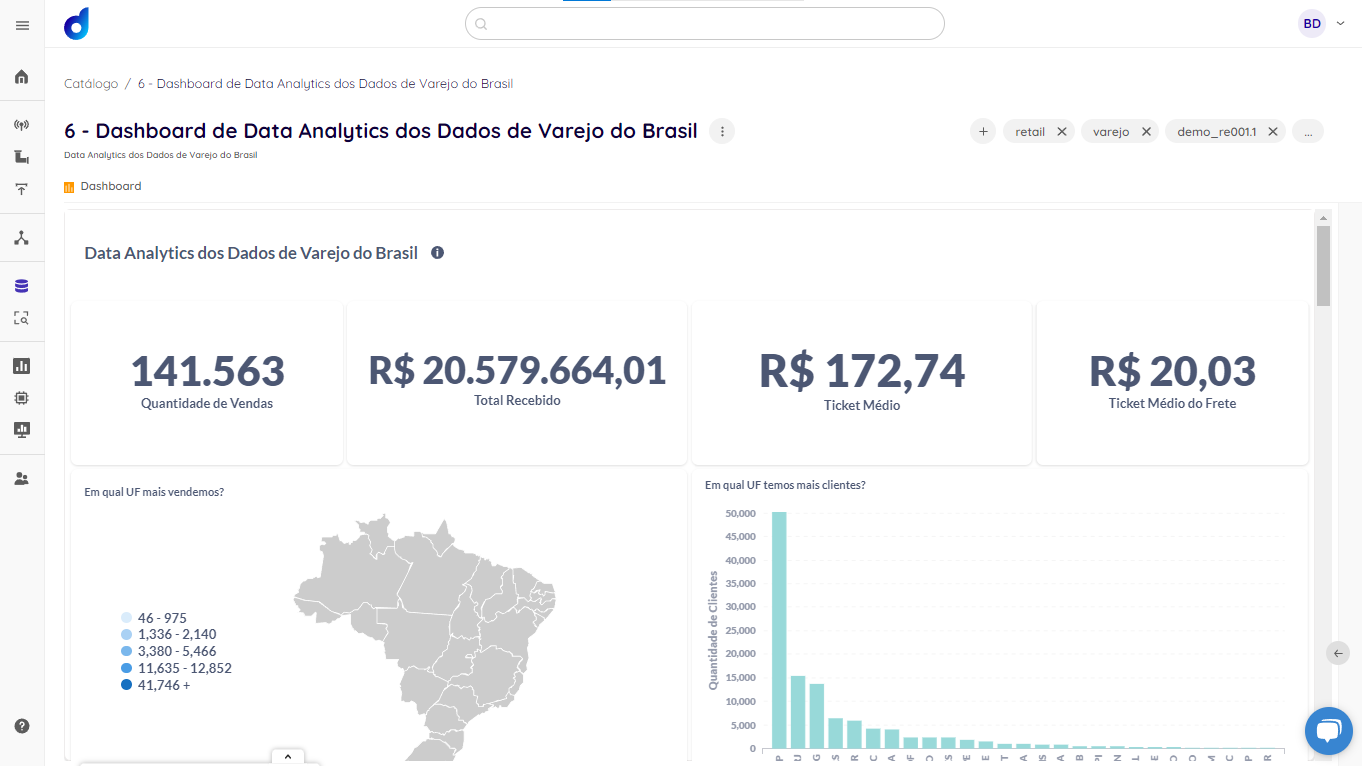
For dashboard creation, see Data visualization.
📘 Click behavior
To navigate between dashboards inside an embedded iframe, configure the dashboard click behavior to link to a URL and enable sharing for the nested dashboards.
See the Metabase interactive dashboard guide.
📘 Opening external websites
If a link reports
connection refused, the destination may usex-frame-options: deny, preventing it from loading inside the iframe. Right-click the link and select Open in new tab.
Manually Cataloged Data Assets
Use + New Data Asset to register an asset with its link, name, type, source, tags, and sharing settings. This centralizes your organization's assets with the necessary governance.
See Manual asset registration.
Permissions
By default, a newly created asset is accessible only to its owner and members of Data Assets Manager. Collected or modeled data can then be shared with selected users and groups to preserve governance and protect information.
Asset Owner
The owner is responsible for asset quality, documentation, and updates. Ownership is assigned automatically when a pipeline, view, dashboard, or manual asset is created.
To transfer ownership, open the asset options, select Owner, choose the new owner, and confirm.

📘 Previous owner's access
Transferring ownership does not automatically remove the previous owner's access. Remove that access separately when needed.
Data Assets Manager
Catalog administrators should belong to this group. Members can view all catalog assets without restrictions, edit them, share them, and transfer ownership.
🚧 Super Admin
Members of Super Admin have the same privileges as Data Assets Managers.
Sharing
To share or unshare an asset, use Catalog > Find the asset > ... > Share > Search for groups and/or users > Save.
🚧 Data warehouse permissions
These permissions apply only to assets in the Dadosfera catalog interface. Data in the warehouse remains accessible to users with access to the Consolidation and Analysis modules.
Access to Asset Options
Some options are available only to the asset owner or members of Data Assets Manager.


If you need these options, contact a Data Assets Manager and ask them to transfer ownership to your user.