SQL Snippets | Analyze
Benefits of Adopting Best Practices
Adopting the best practices in this guide offers several benefits in Dadosfera, including:
- Clearer, more readable data: Standardized SQL snippets make data easier for all users to understand.
- Greater productivity: Reusing SQL queries saves users time and effort.
- Improved collaboration: SQL snippet documentation makes collaboration and knowledge sharing easier.
- More standardized data queries: Standardized queries ensure reliable returned data.
SQL Snippet Standardization
SQL Snippets in Metabase store short SQL queries containing filters, metrics, joins or other common SQL fragments for reuse across queries in the data catalog. They help users with limited SQL experience and increase productivity for advanced users.
In the Dadosfera Catalog, access Metabase through the Visualization module.
How to create a snippet
Here is a simple join query using the sample database included in Metabase as Sample Database.
SELECT *
FROM orders AS o
LEFT JOIN products AS p
ON o.product_id = p.id
Let's save everything after FROM as a snippet to reuse in other queries.
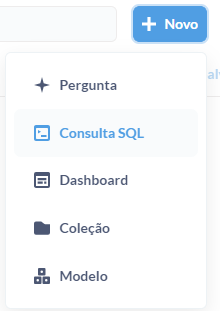
Open SQL Query.
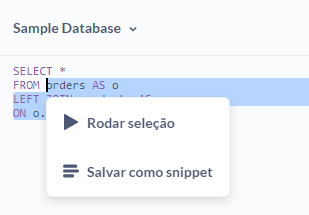
Highlight the SQL fragment you want to save. In this case, select the following SQL fragment:
orders AS o
LEFT JOIN products AS p
ON o.product_id = p.id
Right-click the highlighted section.
Select Save as snippet to create a SQL Snippet. A dialog appears with the SQL statement you highlighted.
Edit, name and describe your SQL Snippet. Snippet names must be unique. Click Save to create it.
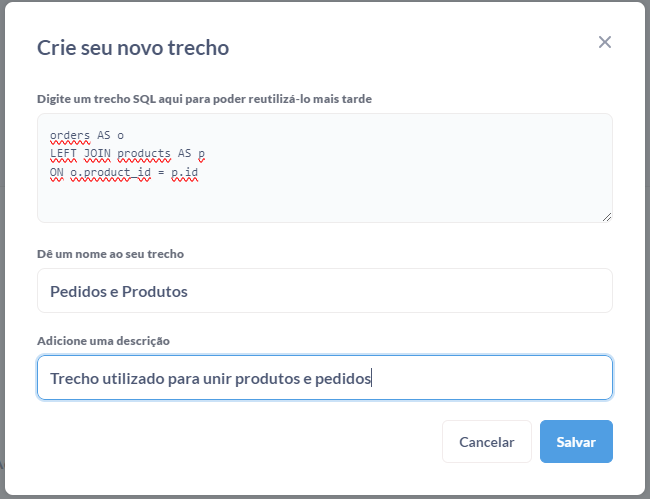
Here we named the snippet “Pedidos e Produtos”. It is now available for anyone to use. This is how it appears in the SQL Query editor:
SELECT *
FROM {{snippet: Pedidos e Produtos}}
Note: If you use aliases in a SQL Snippet, respect them outside the snippet too. For example, if a SQL Snippet uses products AS p, code outside it must use the alias p to reference table columns (as in p.column_name).
SQL Snippets Menu
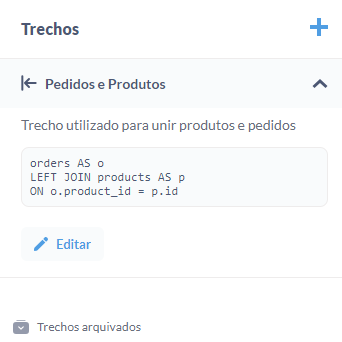
The SQL Query editor sidebar has a SQL Snippets menu listing available and archived snippets.
Click the snippet icon on the right side of the SQL Query editor.
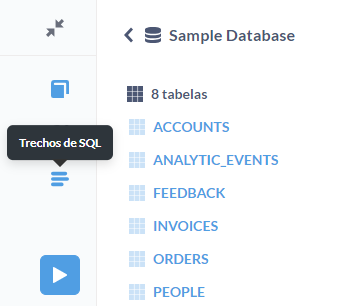
In the SQL Snippets menu, you can:
- Create a snippet. Click + in the upper-right corner of the SQL Snippets sidebar.
- Preview snippets. Click the down arrow to the right of a snippet to see its description and SQL code preview. You can also edit it there.
- Insert a snippet. Click a snippet name to insert it at the current cursor position in your query.
- Search snippets. If you have saved more than 15 snippets, a search icon (magnifying glass) appears to the left of +.
- Edit a snippet. Change its name, description and code.
- Archive and unarchive a snippet. In the Edit dialog, archive a snippet to remove it from the snippet menu and the SQL Query editor's autocomplete options.