Embedding | Analyze
📘
Check whether your organization has purchased the Asset Embedding Module to access this feature. If you do not have access, contact our sales team.
The Asset Embedding Module dashboard lets you centrally view and manage all assets embedded in your organization:
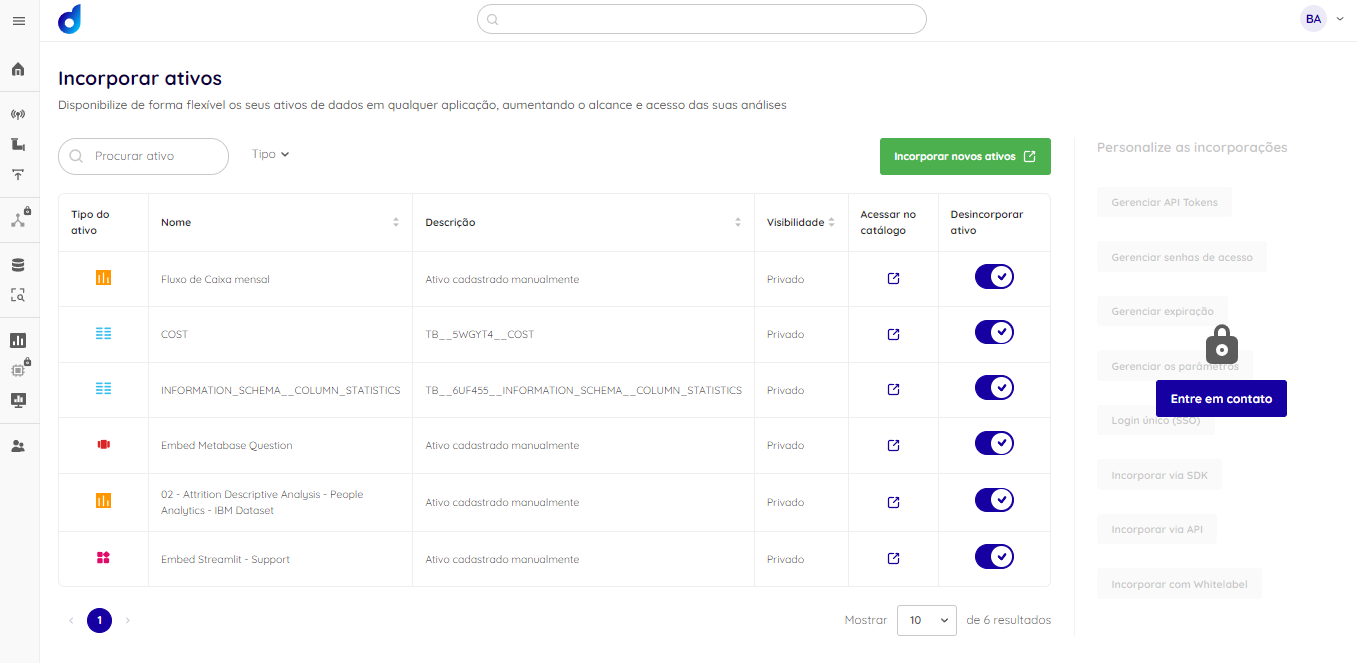
Dadosfera currently offers three embedding modes, depending on the desired security and exposure level:

Private Embedding
Data assets embedded with mandatory Dadosfera platform authentication. Ideal for internal use, ensuring that only authenticated users can access embedded content.
Public Embedding
Assets embedded publicly, without authentication. Recommended for informational or demonstration content that anyone can access on external websites, applications or systems. Embedding is private by default; change its visibility to make it public.
Signed Embedding
Supports authentication through a JWT signed by a trusted entity, with validity configurable through the API. This securely displays embedded content without an active Dadosfera session, especially useful for external portals, custom dashboards or legacy systems.
Security Architecture
Initial Setup (Super Admin)
-
Generate an RS256 Key Pair
Use OpenSSL to generate the required key pair:
# Gerar chave privada RS256
openssl genrsa -out private_key.pem 2048

# Extrair chave pública da chave privada
openssl rsa -in private_key.pem -pubout -out public_key.pem
⚠️ IMPORTANT: The customer is solely responsible for protecting and securing the private key. Dadosfera is not responsible for leaks, misuse or compromise of private keys. Always keep your private key in a secure environment and never share it.
-
Register the Public Key in the Platform
- Open the platform Home page.
- Click the organization name in the top corner.
- Select "My Organization".
- Go to the "Public Key" section.
- Paste the generated public key contents (
public_key.pem). - Save the settings.

Generating a JWT
-
Identify the Asset
- To obtain the asset ID required for the JWT:
- Navigate to the desired asset in the catalog.
- Click the link icon button (sharing dialog) or the iframe icon button (embedding dialog).
- The asset ID appears in the corresponding dialog.
- To obtain the asset ID required for the JWT:
-
Create the Token
- The customer generates a JWT using the corresponding private key.
- The token should contain only essential information.
- Set an appropriate expiration time.
-
Simplified JWT Structure
{
  "sub": "id_do_compartilhamento",
  "exp": 1234567890
}
Where:
sub: Sharing ID (obtained from the link or embedding dialog).exp: Token expiration timestamp.
How to Use It
-
Generate an Access URL
- Build a URL in this format:
https://app.dadosfera.ai/en-US/share/{jwt_token} - Replace
{jwt_token}with the generated JWT. - Example:
https://app.dadosfera.ai/en-US/share/eyJhbGciOiJSUzI1NiIsInR5cCI6IkpXVCJ9...
- Build a URL in this format:
-
Access Validation
- The system automatically validates the JWT.
- Verifies the signature using the registered public key.
- Confirms the token has not expired.
- Redirects to the asset corresponding to the sharing ID.
Security and Best Practices
- Always review visibility settings before sharing.
- Use private links for sensitive data.
- Set appropriate JWT expiration times.
Limitations
- Expired JWTs do not grant asset access.
- Public links have no granular access control.
- Changing the public key invalidates all existing tokens.
- Deleted assets make links/embeds unavailable.
Common issues
Multiple embeds on one page
When embedding data assets in a web page, users may encounter an issue when logging in directly through the embedded screen. If the page contains multiple embedded assets, they can all be displayed correctly only after the page is reloaded.
Dadosfera suggests these solutions:
1 - Manually
Reload the web page after logging in by pressing F5 (or Ctrl+R) or clicking the browser's reload button.
2 - Automatically: Add a Script (For Users with Source Code Access)
If you control the source code of the page containing the embeds, you can automate page reloading to improve the user experience. Dadosfera provides a JavaScript snippet you can add to the page to reload it automatically after login.
<!DOCTYPE html>
<html>
  <head>
    <!--Seu código-->
    <!--...-->
  </head>
  <body>
    <!--Seu código-->
    <!--...-->

    <!--👇 ADICIONE ESTA PARTE 👇-->
    <script>
      // Adiciona o event listener à janela (window)
      window.addEventListener('message', function (event) {
        // Valida a origem da mensagem
        if (event.origin.startsWith('https://app.dadosfera.ai')) {
          if (event.data === 'reload') {
            location.reload();
          }
        }
      });
    </script>
    <!--👆 ADICIONE ESTA PARTE 👆-->
  </body>
</html>
Support
For technical questions or asset-sharing issues, contact support through the platform's official channels.